Hardware settings and performance tuning for mobile gaming.
A high-end phone does not guarantee smooth gameplay if software settings cause excessive heat and thermal throttling. Conversely, a budget handset can punch well above its weight when configured correctly. MobPulse hardware tips provide practical, technical instructions for optimizing frame rates, controlling surface temperatures, extending battery life, and choosing the right gaming peripherals for your mobile device.
Thermodynamics & Silicon Architecture
The physics of mobile thermal throttling and clock management
Smartphones rely on passive cooling systems—such as vapor chambers, graphite heat spreaders, and copper foils—to dissipate internal heat through the device chassis. Because phones lack active motorized fans, sustained high-load rendering causes internal temperatures to climb rapidly.
Once the processor reaches its thermal ceiling, the operating system aggressively slashes CPU and GPU clock speeds to prevent hardware damage, resulting in sudden frame drops and stuttering. Managing ambient airflow, removing insulated protective cases during intensive play sessions, and keeping screen brightness moderate can delay thermal limits significantly.
By preventing heat from saturating the vapor chamber early in your session, you stabilize the system-on-chip (SoC) sustained performance curve, keeping frame delivery consistent rather than volatile.
41°C – 44°C
Typical chassis temperature envelope where smartphone thermal managers begin first-stage GPU core frequency downclocking.
35% – 50%
Proportion of total phone power consumption consumed by high-nits OLED panels when run above 800 nits manual brightness.
96.4%
Recorded frame-time consistency when maintaining passive heat dissipation with non-insulating bumper frames.
4.5 Min
Average cooldown interval required for graphite layers to redistribute accumulated core heat back to the ambient chassis.
Render Pipeline Configuration
Balancing graphics presets: frame rate versus visual fidelity
Most mobile games offer graphical menus with options for shadow quality, anti-aliasing, post-processing effects, resolution scaling, and frame rate caps. When performance is your goal, maximizing every slider is a mistake that causes rapid heat accumulation:
| Graphic Parameter | Recommended Setting | GPU Load Impact | Thermal Rationale |
|---|---|---|---|
| Frame Rate Cap | Maximum (60 / 90 / 120Hz) | Linear increase | Always prioritize the highest available refresh rate over resolution or shadow complexity to minimize motion blur and input lag. |
| Post-Processing & Bloom | Disabled / Low | Heavy shader cycles | Lower post-processing effects like motion blur, depth of field, and bloom, which consume heavy GPU shader cycles while obscuring visual clarity. |
| Shadow Resolution | Low or Medium | Severe vertex & raster impact | Set shadows to medium or low; high-resolution dynamic shadow maps are often the single largest cause of thermal accumulation on mobile GPUs. |
| Anti-Aliasing (MSAA/FXAA) | 2x or Off on high-DPI | Memory bandwidth strain | With sub-6-inch screens exceeding 400 pixels per inch, extreme spatial anti-aliasing yields minimal visible improvement while stressing memory bandwidth. |
| Resolution Scaling | Native (100%) or Balanced | Fill-rate bound | Avoid 4K supersampling presets; keeping internal rendering locked to panel native allows predictable frame pacing. |
Curious how individual titles behave under these configurations? Read our detailed game-by-game evaluations.
Read game reviews
Touch Digitizer Polling Rates vs Screen Refresh
Input Latency & Polling Rate
Touch sampling rates and display response times
There is a fundamental difference between a screen's display refresh rate (measured in Hertz) and its touch sampling rate (also measured in Hertz). While a 90Hz display redraws the image 90 times per second, a 240Hz, 360Hz, or 480Hz touch digitizer checks for finger inputs hundreds of times per second.
Higher touch polling rates reduce input latency dramatically. When making fine aiming adjustments or tracking rapid targets in competitive titles, a high polling digitizer translates finger micro-movements into camera repositioning within fractions of a frame, eliminating the floaty or disconnected sensation common to budget panels.
Many operating system skins offer a specialized "Game Booster" or "Touch Sensitivity" toggle. Activating these profiles instructs the display controller to keep the digitizer locked at maximum polling frequency, bypassing aggressive power-saving polling drops when the finger is stationary.
120 Hz
8.3ms sampling window
240–480 Hz
2.0ms–4.1ms window
< 25 ms
Target latency floor
Power Management & Heat Isolation
Battery longevity and bypass charging configurations
Gaming while charging is one of the fastest ways to degrade a phone battery, as the heat generated by fast-charging circuits combines with GPU rendering heat to cook the lithium-ion battery cells. We explore the mechanics of bypass charging and how to isolate power paths:
Motherboard Direct Power
Bypass charging routes wall power straight to the chipset, bypassing the battery completely. The battery remains at its current state of charge without absorbing chemical stress or cycle wear.
Charging Heat Elimination
Fast chargers generate significant thermal overhead in voltage conversion. By bypassing battery intake, total phone internal temperatures can drop by as much as 4°C to 7°C during heavy gaming sessions.
Activation Instructions
On supported hardware, enable bypass mode through your phone's game dashboard under labels like "Pause USB Power Delivery", "Charge Bypass", or "Game Power Source" while connected to a compatible PD brick.
Peripherals & Tactile Feedback
Physical clip-on controllers versus Bluetooth input latency
Adding physical controls can improve ergonomics and precision, but the connection protocol matters. Standard Bluetooth gamepads introduce between twenty to fifty milliseconds of wireless input latency, which can feel sluggish in fast action titles.
Direct-connection USB-C controllers plug right into the phone's charging port, eliminating wireless lag and drawing negligible power from the handset. We compare various controller form factors, evaluating mechanical switches, hall-effect analog sticks that prevent drift, and ergonomic grip profiles designed for long tournament blocks.
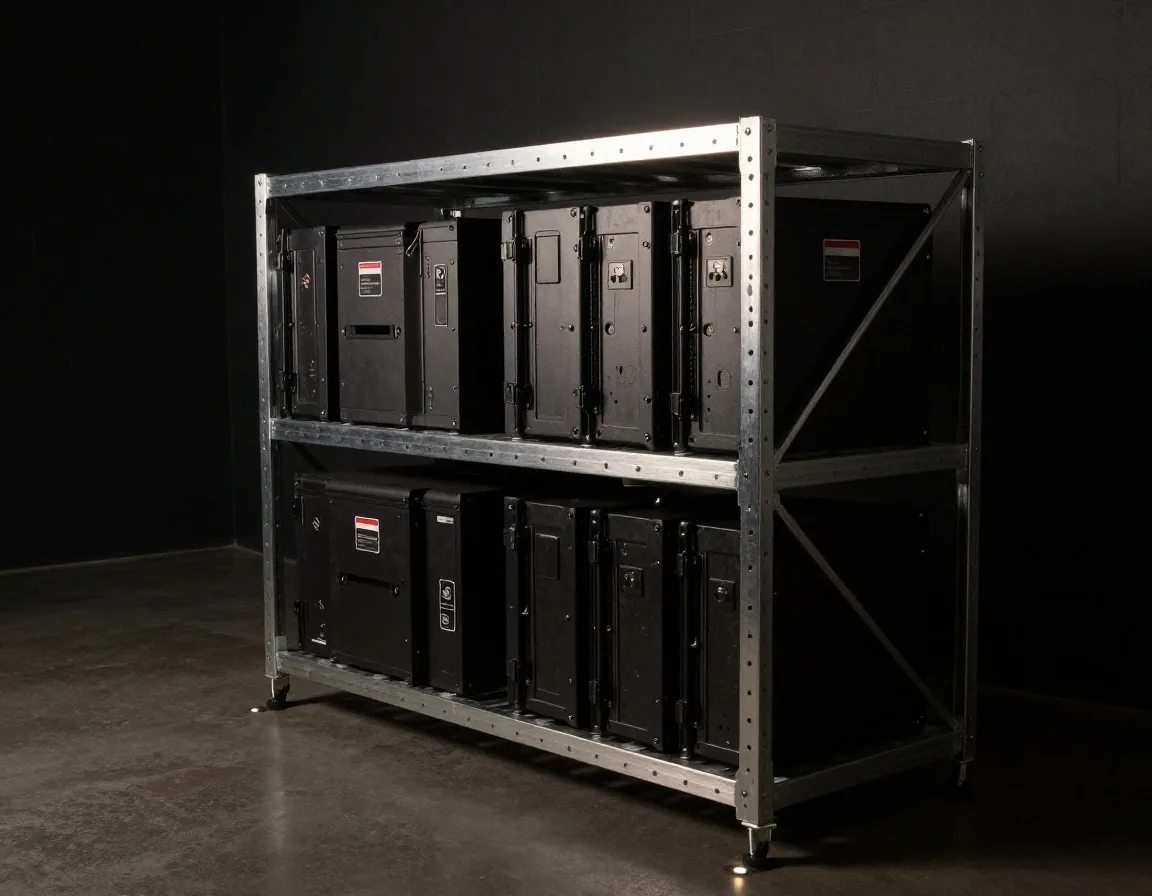
Mechanical Switches and Zero-Play USB-C Bridges
Active Thermoelectric Cooling
Active cooling attachments and peltier cooler benchmarks
When internal passive cooling is not enough, external clip-on thermoelectric coolers (Peltier devices) can rapidly lower chassis temperatures. We explain how these semiconductor heat pumps work, pulling heat from the back of the phone and dispersing it via small active fans.
Solid-State Heat Transfer
Thermoelectric plates pass current across bismuth telluride junctions, actively pumping thermal energy from the cold plate in contact with your phone's back glass to an aluminum fin array.
Zero Throttling Lock
By holding chassis surfaces below 34°C during 120fps multiplayer matches, the operating system never trips thermal limiters, maintaining flat frametimes across multi-hour scrims.
Operational Caution
Peltier coolers require external 15W–20W USB-C feeds. In humid environments, ensure the cooler plate does not drop below ambient dew points when the device is idle to prevent moisture condensation.
Operating System Tuning
Developer options and background process management
Mobile operating systems constantly juggle background tasks, from social media syncing to cloud backups, which can rob your game of valuable CPU cycles and RAM bandwidth. Configure your system for dedicated game focus:
Android Developer Configuration
AOSP / Custom Skins-
Background Process Limit: Restrict background processes to at most 1 or 2 during competitive sessions to prevent RAM swapping from pushing game textures out of memory.
-
GPU Telemetry (GPUWatch / PerfMon): Toggle on native SoC GPU overlay utilities to observe true frame delivery intervals and identify frame pacing stutter in real-time.
-
Window Animation Scales: Set Window, Transition, and Animator scales to 0.5x or Off to speed up OS interaction responses when returning from overlay panels.
iOS Focus & Memory Isolation
iOS Settings-
Gaming Focus Mode: Configure a dedicated Focus Profile that silences all incoming notifications, calls, and banner interruptions to prevent UI rendering thread interference.
-
Background App Refresh: Toggle off Background App Refresh entirely or selectively for communication apps that query cellular and Wi-Fi modems periodically.
-
Guided Access: Triple-click activation locks touch interactions to within the game viewport, preventing accidental swipes on the home bar during frantic gestures.
Acoustic Synchronization
Audio latency and wireless earbud codec selection
Wireless audio latency can create a jarring disconnect between seeing a gun fire on screen and hearing the gunshot in your ears. Standard Bluetooth audio codecs like SBC or AAC can introduce over two hundred milliseconds of latency.
In competitive battle royale and shooter genres, a 200ms audio delay means enemy footsteps and directional bullet cracks are heard nearly a quarter of a second after they occur. Low-latency protocols like aptX Low Latency, LC3 (LE Audio), and proprietary gaming earbuds with sub-40ms modes dramatically shrink this acoustic offset.
For absolute zero latency, a compact USB-C to 3.5mm analog headphone adapter with an integrated DAC remains the unbeatable gold standard for competitive tournament setups.
Direct digital-to-analog conversion without transmission buffer or packet compression delay.
Competitive wireless floor; auditory cues remain virtually in sync with screen muzzle flashes.
Next-generation standard protocol balancing battery consumption with acceptable latency.
Severe acoustic lag; not recommended for fast-paced shooters or rhythm-based mobile titles.

Friction Mitigation and Tactile Consistency
Tactile Kinematics
Screen protectors, oleophobic coatings, and finger friction
The physical surface of your screen plays a major role in touch accuracy and finger fatigue. Standard glass screen protectors often accumulate skin oils, leading to finger drag, micro-stutters, and unresponsive swipes during crucial gameplay moments.
We evaluate matte glass protectors, specialized gaming finger sleeves, and aftermarket oleophobic coating kits that reduce surface friction, helping your fingers glide smoothly across the screen during intense multi-touch maneuvers.
Matte chemically-etched glass diffuses screen glare and prevents moisture buildup from causing friction changes, while conductive silver-fiber finger sleeves deliver uniform dynamic glide resistance regardless of perspiration.
NAND Flash Architecture
Storage speed and asset loading performance
Modern mobile games can exceed thirty gigabytes in size, loading thousands of high-resolution textures, audio clips, and 3D models into memory during stage transitions. The read and write speeds of your device's internal storage directly affect loading screen times and reduce micro-stutters when streaming assets in open-world titles.
UFS 3.1 vs UFS 4.0
UFS 4.0 doubles sequential read speeds up to 4200 MB/s compared to 2100 MB/s on UFS 3.1. When traversing vast open-world maps, faster throughput prevents asset streaming hitches.
The 80% Capacity Ceiling
Keep internal storage under eighty percent capacity to prevent storage controller wear and write-speed throttling. NAND flash requires free blocks for garbage collection and SLC caching routines.
Direct Internal Installation
Never install resource-intensive gaming assets on external MicroSD cards. Card bus speeds cap around 100 MB/s with abysmal random 4K read speeds, guaranteeing mid-game asset stutters.
Technical Troubleshooting Ledger
Frequently asked hardware and optimization questions
Clear, practical solutions for typical mobile performance bottlenecks, battery health queries, and peripheral configurations.
Does playing games at 120Hz drain battery significantly faster than 60Hz?
Can an external cooler damage a phone through condensation?
Why does my phone get hot even when the graphics settings are set to low?
Will using developer options void my phone's warranty?
Stay ahead with technical teardowns and game performance guides.
Explore our comprehensive library of title-specific strategy dossiers, genre-by-genre breakdowns, and independent hardware analyses published by competitive mobile players.
MobPulse Gaming LLC
Austin, Texas, United States
Operating Hours
Mon – Fri: 9:00 AM – 6:00 PM CST